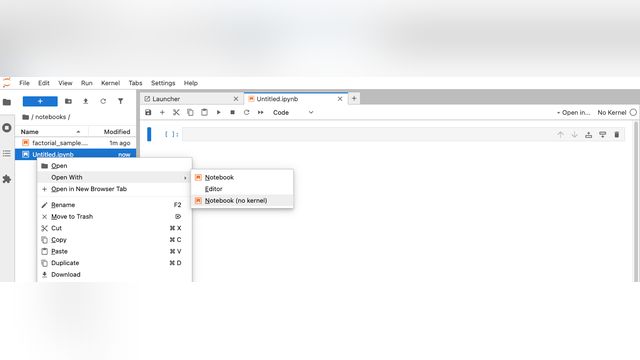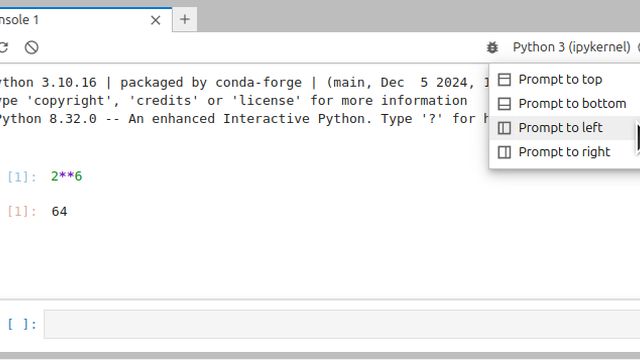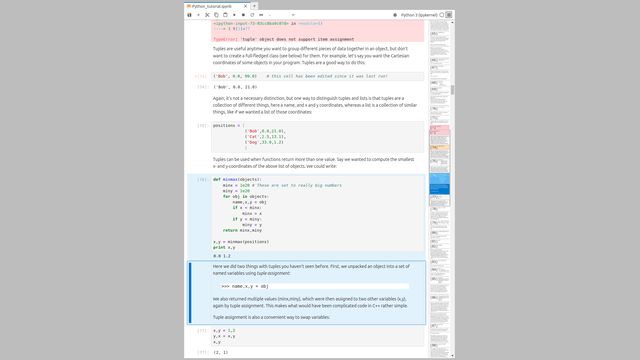

JupyterLab 4.6 and Notebook 7.6 are out!
JupyterLab 4.6 features new interface customization options, improved file browser and debugger, an easy way to jump between recently edited cells, and numerous other notebook experience improvements. Keyboard shortcuts, navigation and accessibility is another focus area in this release. Jupyter Notebook 7.6 has also been released, including the fixes and enhancements of JupyterLab along with a new Scratchpad console and other Notebook-specific improvements. This article highlights notable changes in both applications.
You can try out the changes in your browser: JupyterLab 4.6, Notebook 7.6
At the time of publication, the preview runs on JupyterLite 0.8.
Enhancements shared by JupyterLab and Notebook
Notebook improvements
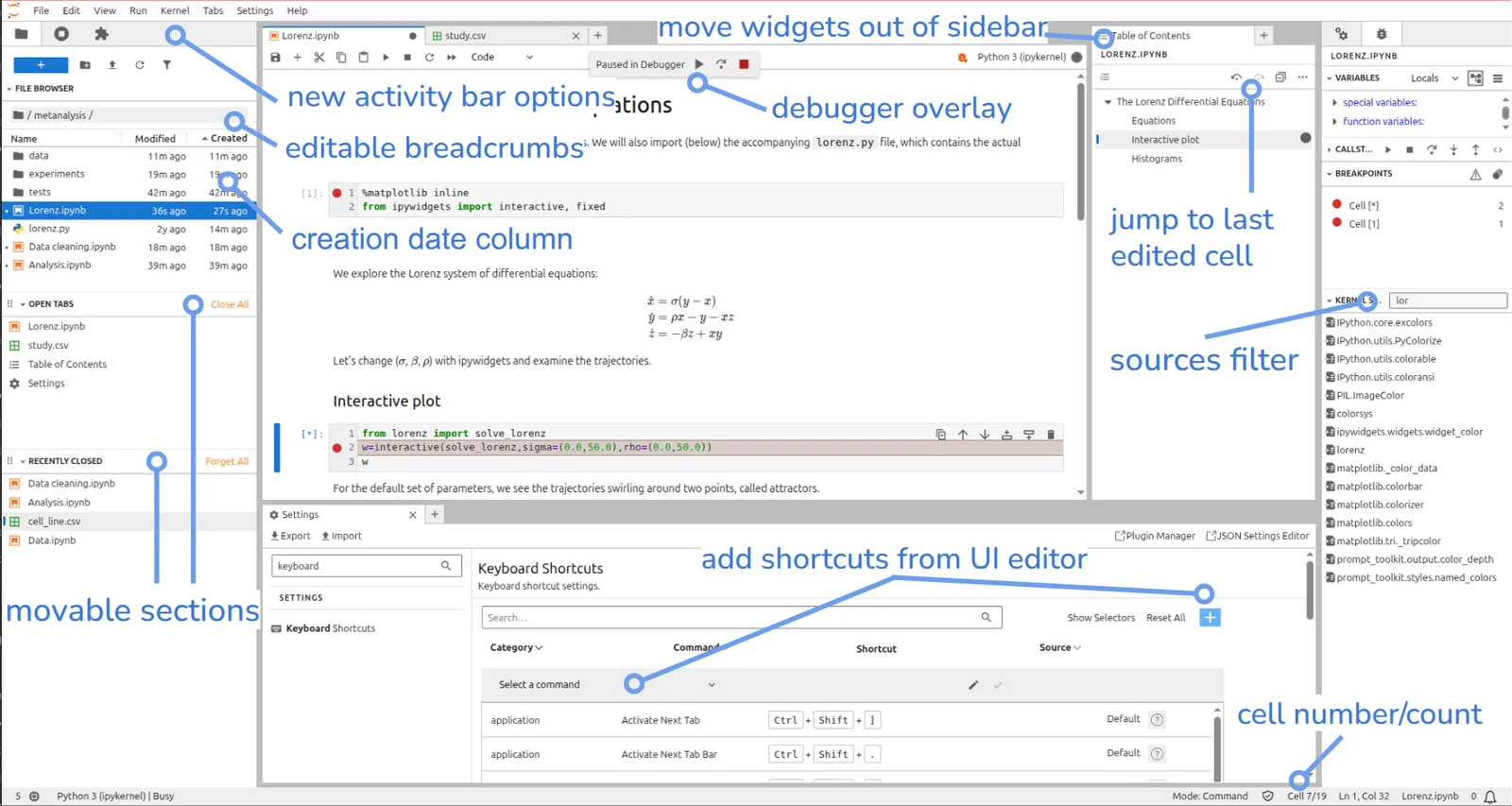
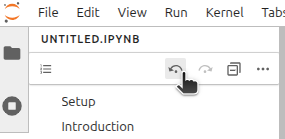
Two new navigation commands, “Select previous last modified cell” and “Select next last modified cell”, allow jumping back and forward through recently edited cells. The commands are accessible from the Command Palette and as buttons in the Table Of Contents toolbar when a notebook is active.
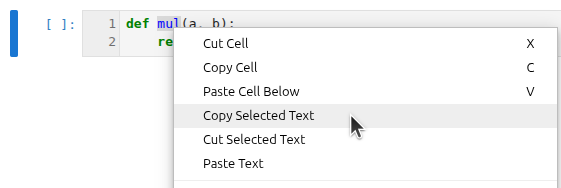
Copy, cut, and paste text commands have been added to the notebook context menu. This feature requires permission to access clipboard to work reliably and may not work in Firefox depending on version and additional restrictions.
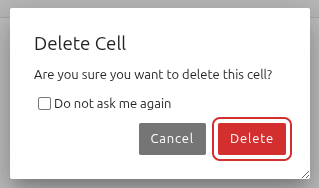
The cell toolbar delete button now shows a confirmation dialog to prevent accidental deletion. The “Do not ask me again” checkbox is available and the preference is persisted in Cell Toolbar settings. The standard keyboard shortcut (D, D) is unaffected.
Pressing Ctrl + B (Cmd + B on macOS) in a markdown cell wraps the selected text in bold formatting.
When exporting a notebook as HTML via File → Save and Export Notebook As → HTML, a dialog now asks whether to sanitize the HTML output before download.
File browser: new column, editable breadcrumbs, open in terminal
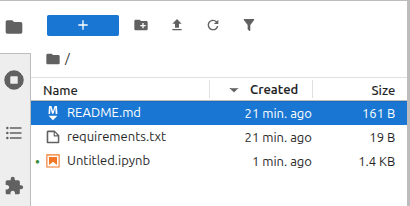
A new “Date Created” column has been added to the file browser, showing when files were created. The column can be toggled via Settings → File Browser → “Show date created column” or by right-clicking the column header. The latest jupyter-server (v2.18+) is required for accurate values across operating systems.
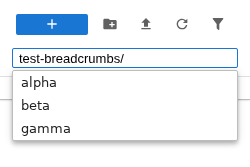
The breadcrumb bar now supports direct path editing with tab-completion. Clicking the area behind breadcrumbs (highlighted on hover), or using the Command Palette, opens an editable text field where pressing Tab completes the longest common prefix of matching subdirectories.
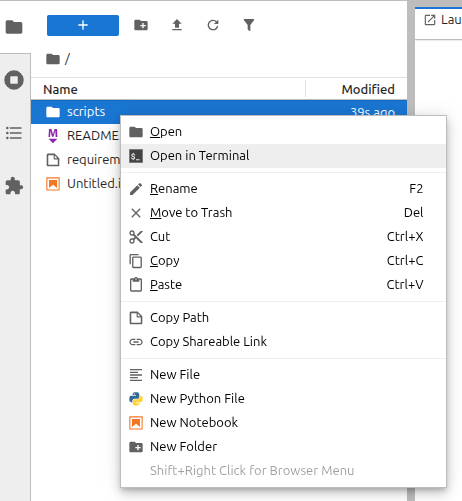
A new “Open in Terminal” option in the file browser context menu opens a terminal navigated to the selected directory. When multiple directories are selected, one terminal is opened per directory.
Additional file browser improvements include: a configurable file name sort order, persistence of the sort state across sessions, automatic clearing of the file filter when changing directories, and a loading animation during file browser refresh.
Debugger: kernel sources filter, floating overlay
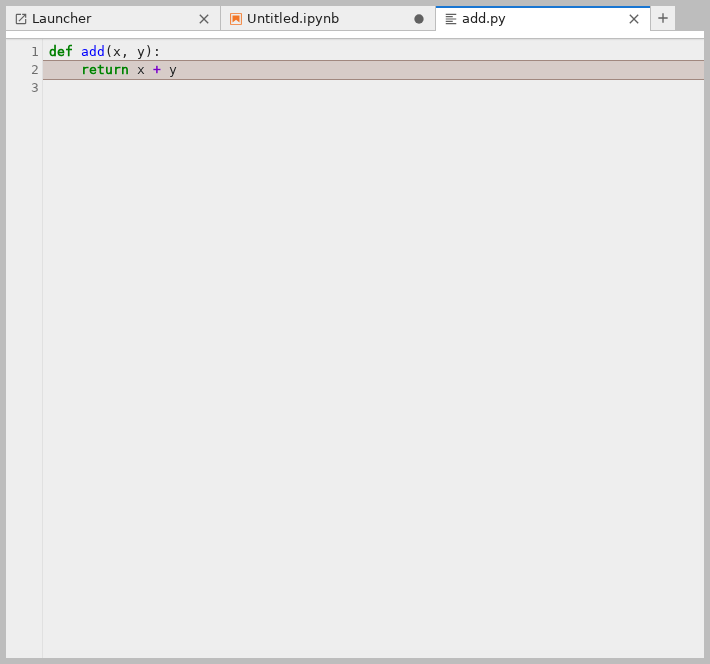
The debugger Sources panel has been moved out of the debugger sidebar; the Sources now open as read-only editors in the main area, keeping the sidebar uncluttered while you explore the code state. The previous behavior can be restored by disabling the “Show Sources in Main Area” setting in the Debugger settings.
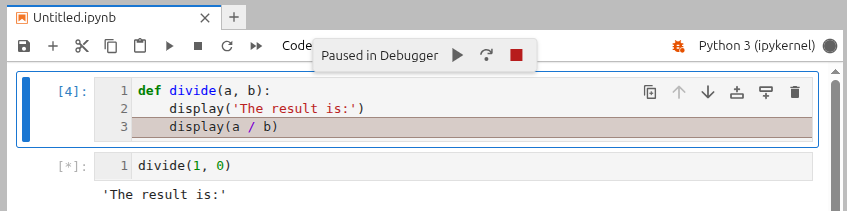
An overlay with continue/step in/stop buttons has been added easing the control of the debugger steps:
The Kernel Sources filter bar has been moved to the toolbar and now supports live filtering, making it easier to search through kernel source files while debugging.
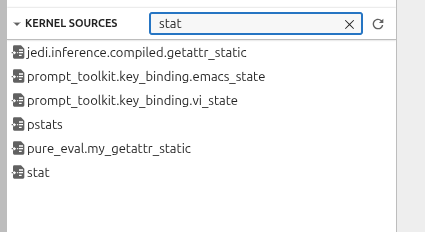
The refresh button for sources list was removed — the sources will now update automatically after each code execution.
Keyboard navigation and accessibility
Keyboard navigation has been improved across several components:
- The terminal no longer traps keyboard focus, allowing users to move focus away with the keyboard.
- The console and file browser breadcrumbs both received keyboard navigation fixes.
- Focus is now correctly restored after closing the command palette, and input elements in dialogs opened from the command palette receive focus immediately.
- The find-and-replace button focus in the document search box has been corrected.
Screen reader behavior has been improved in the launcher and notebook. Toolbar buttons now correctly reflect their pressed state via the aria-pressed attribute.
The Keyboard Shortcuts settings panel has been updated to improve accessibility, including better keyboard interaction and screen reader announcements within the shortcuts editor dialog.
Focus indicators have been improved across the interface, including the status bar and other interactive components.
Keyboard shortcuts
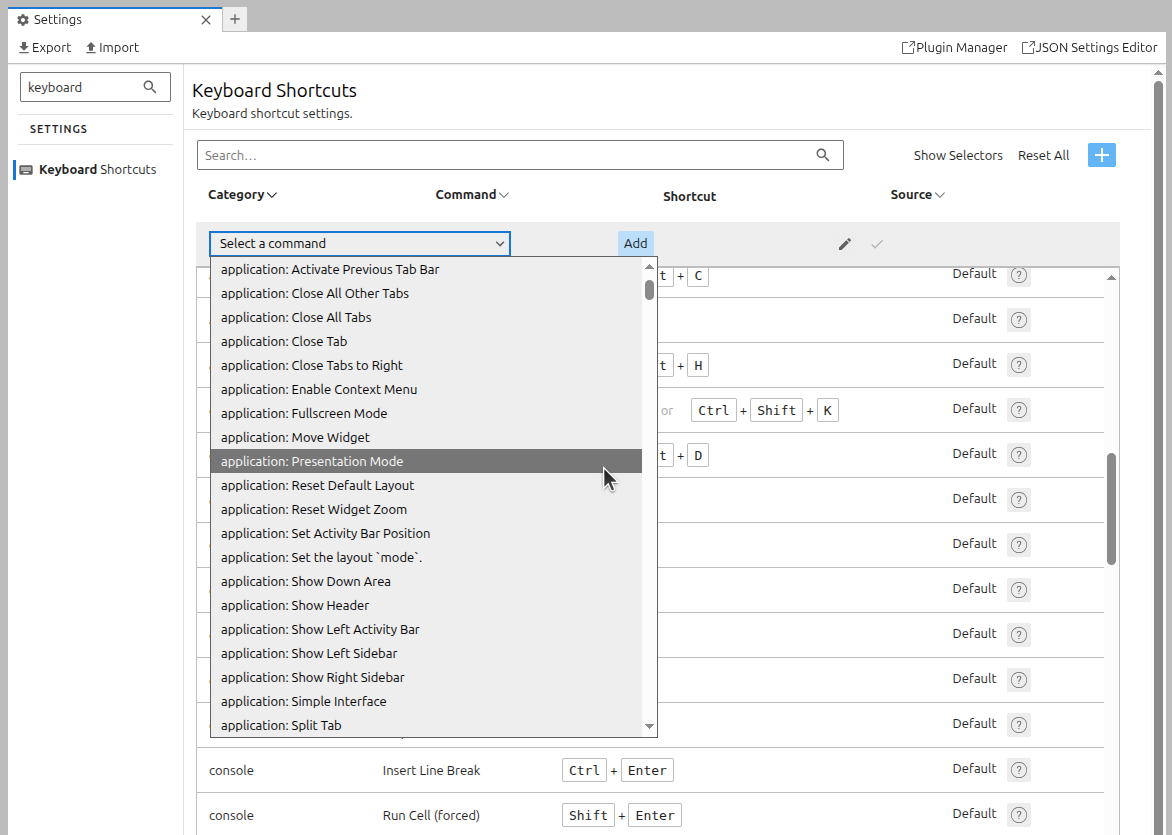
Shortcuts can now be added from the UI shortcut editor for any command (previously this required writing JSON in Advanced Settings Editor).
“Find and Replace” has been added to the Edit menu with the keyboard shortcut Ctrl + H (Cmd + H on macOS).
Ctrl + Y has been added as a redo shortcut on Windows and Linux.
Pressing 1, 2, 3, 4, 5 and 6 will no longer convert a focused code or raw cell to Markdown to avoid accidental conversions. These shortcuts continue working on markdown cells, switching the heading level, as they did before.
Internationalization
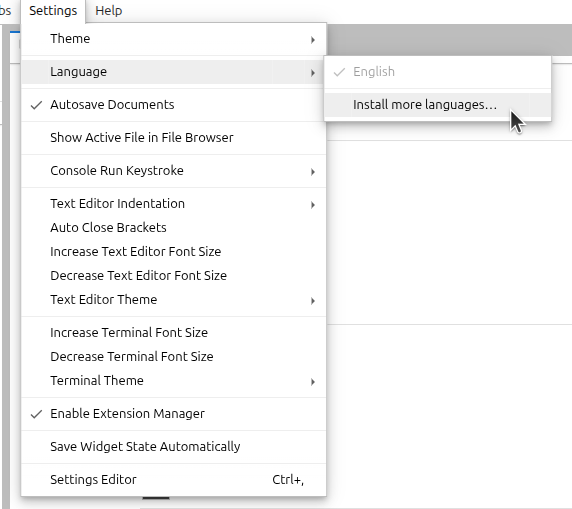
Language packs can now be installed directly from within JupyterLab by selecting “Install more languages…” at the bottom of the Settings → Language menu. This opens the Extension Manager pre-filled with a search for available language pack extensions.
Terminal enhancements
Pressing Shift+Enter in the terminal now inserts a newline without executing the current line. This matches the behavior expected by certain terminal applications.
Inline completion enhancements
Inline completion suggestions can now be rendered with syntax highlighting that matches the active editor language. This can be enabled in Settings → Inline Completer → “Ghost text syntax highlighting”.

Ghost text is now also shown for all active cursors in a multi-cursor editing session.
JupyterLab-specific enhancements
Layout and interface customization
The activity bar can now be positioned at the top or bottom of the interface, in addition to the default left and right placement. The setting is available under Settings → Interface → Activity Bar Position.
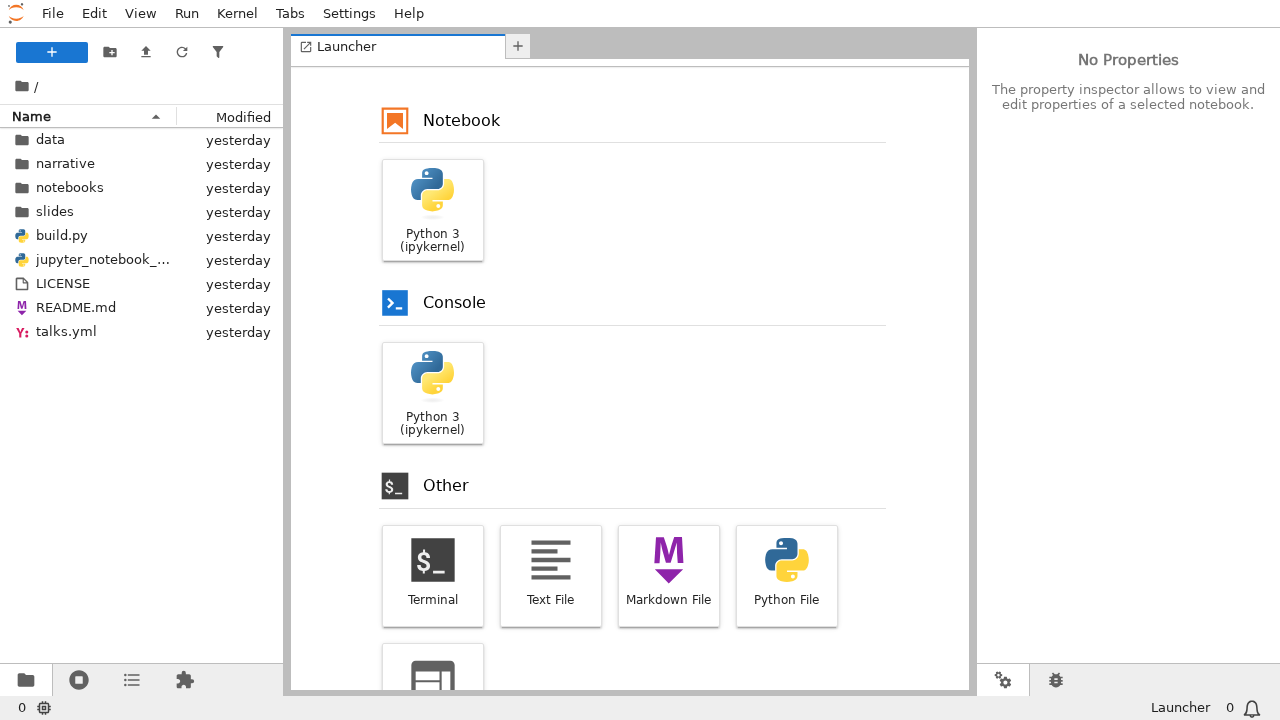
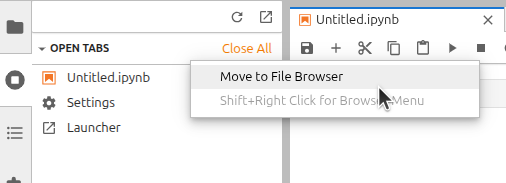
Sections of accordion sidebars can now be moved between panels via a context menu. Right-clicking a section header shows a “Move To” menu. The placement and collapsed state of moved sections are persisted across sessions.
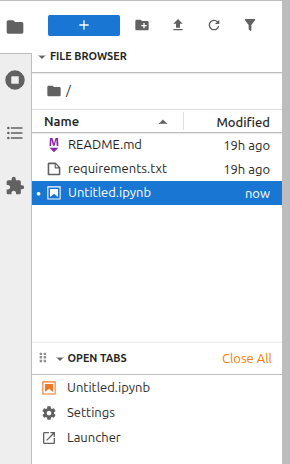
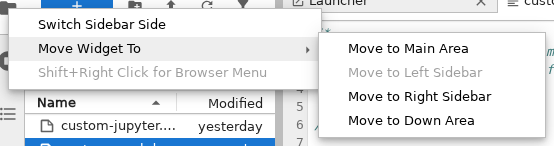
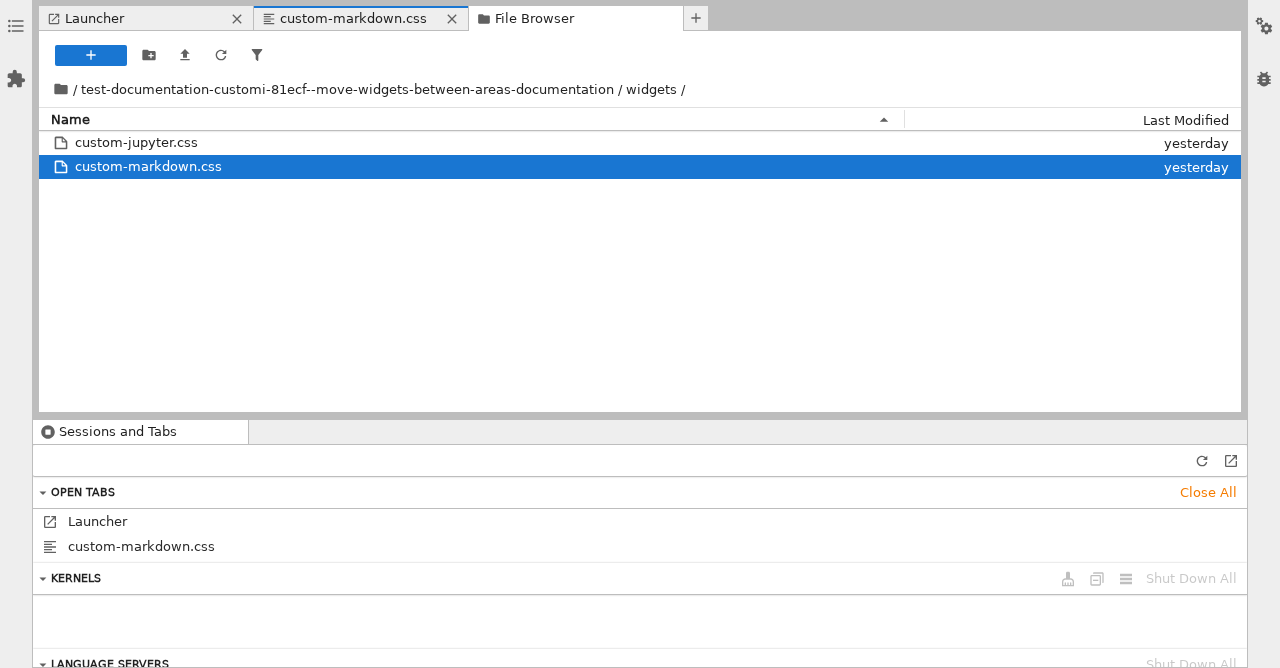
The sidebar panels themselves can be moved between areas. Right-clicking a sidebar shows submenu with options to move it to the main area, a different sidebar, or the down area.
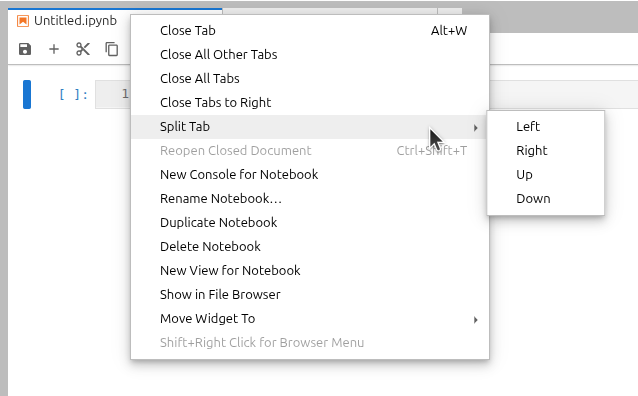
Tabs can now be split in four directions using the “Split Tab” context menu item (or the command palette), which adds split left, right, up, and down options.
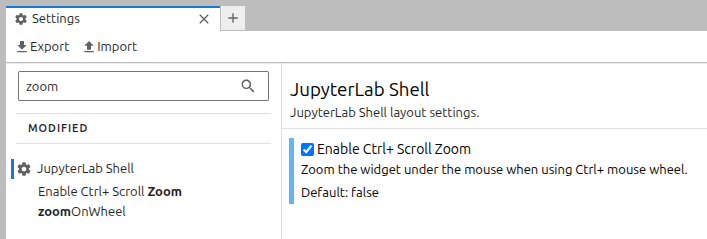
Individual panels can be zoomed in or out using Ctrl + mouse wheel (when “Enable Ctrl+ Scroll Zoom” is turned on in Settings → Interface) or via the command palette, without affecting other panels.
Performance
Panel resizing is now more responsive; the width of individual widgets inside resized panels is frozen during the drag. This behaviour can be disabled by toggling “Optimize panel resize” in Settings → Application Shell.
Notebook-specific enhancements
Scratchpad console
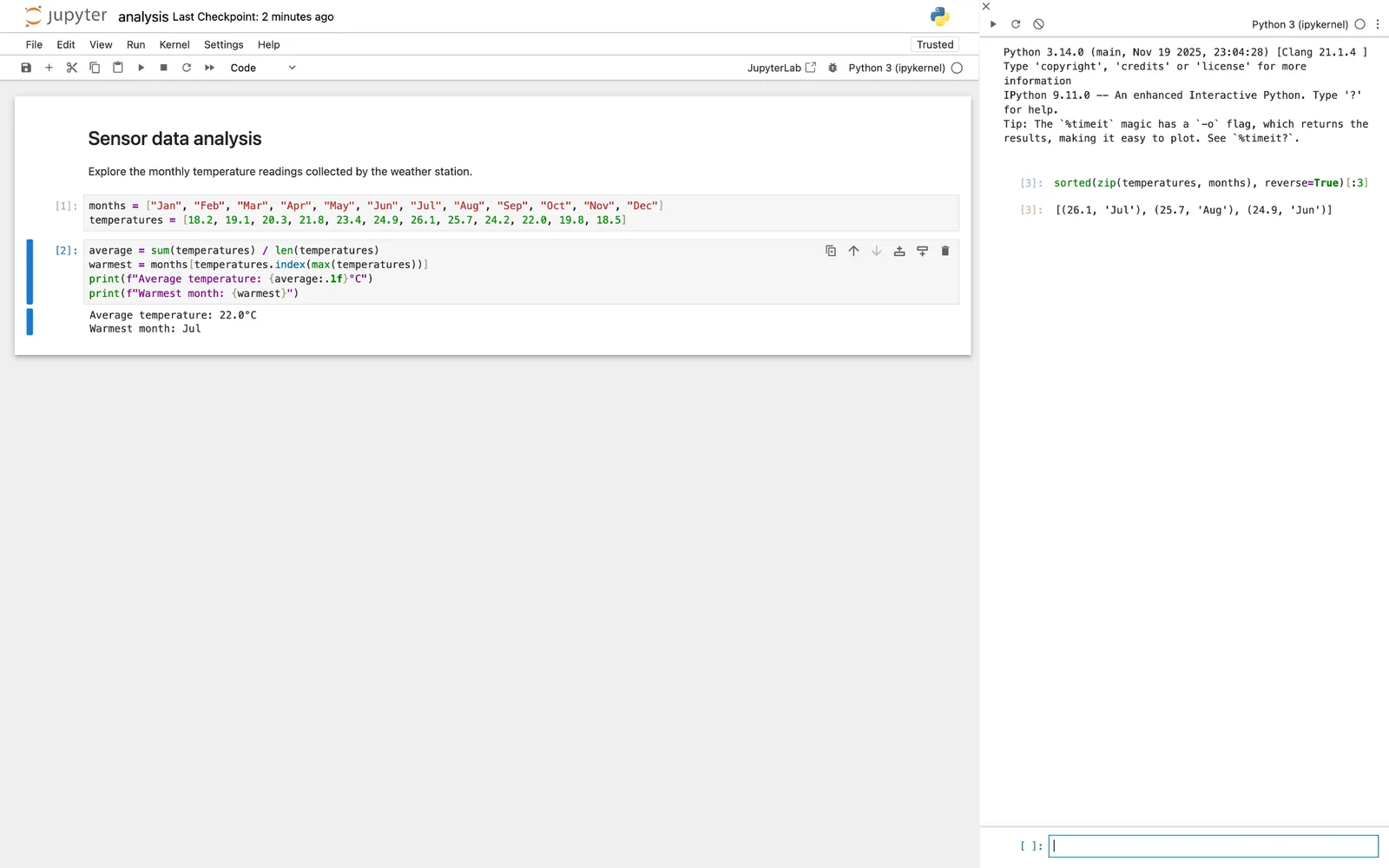
A scratchpad console can now be opened next to a notebook, sharing the same kernel. This makes it easy to run quick experiments or inspect variables without modifying the notebook itself.
The scratchpad console can be opened from the File -> New -> Scratchpad console menu, from the command palette, or with the Ctrl + B (or Cmd + B on macOS) keyboard shortcut, which toggles the console panel.
Confirmation dialog when closing and shutting down a notebook
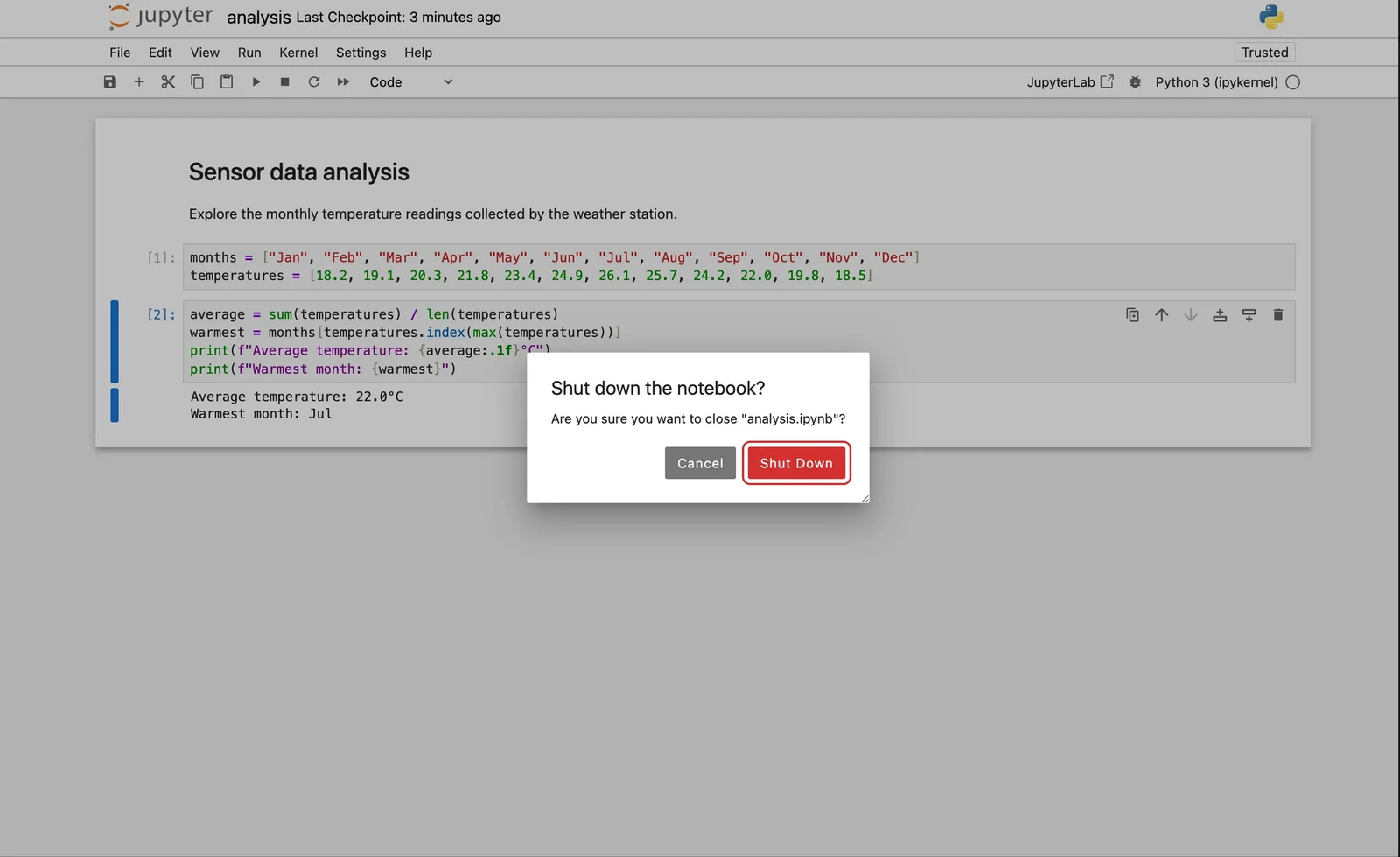
The “Close and Shut Down Notebook” command now asks for confirmation before closing the browser tab and shutting down the kernel. The confirmation prompt can be disabled in the Settings Editor with the “Prompt for confirmation before closing and shutting down” setting.
Miscellaneous
- Tab widths in JupyterLab are kept frozen while the mouse pointer hovers over them, making it easier to close multiple tabs with the mouse
- Autocompletion heuristics were improved; the autocompletion (which remains opt-in) should no longer trigger in unexpected scenarios
- The output scroll overlay collapse icon is now visible regardless of the output size and scroll state
- The fonts used across components were standardized and fonts specified by themes or overrides are respected in every component of the application
For extension authors
Building extensions (and JupyterLab/Notebook themselves) is now ~5 times faster thanks to migration from webpack to Rspack. Building extensions no longer requires a full JupyterLab installation as the relevant machinery was extracted to jupyter-builder (see this blog post for more details). This (among others) enables faster build environment setup on CI. Future improvements to the build system can now be released independently of the JupyterLab release cadence.
Please refer to the Extension Migration Guide for more details on API changes and up-to-date advice.
As large as minor releases go
This JupyterLab release includes 68 new features and enhancements, 97 bug fixes, and 38 documentation improvements. 95 people contributed to this release. Across record-breaking 171 maintenance tasks we kept the dependencies up-to-date, improved quality of code and reduced the time to PRs getting merged by improving the CI performance and robustness. These efforts were in part funded by Jupyter Foundation Community Proposals.
While the size of minor releases fluctuated across years, this one is on the higher side, with only v3.1 featuring slightly more merged PRs. The reviewers worked hard to ensure no regressions are introduced, but if any slipped through, please open an issue in respective repository (JupyterLab or Notebook).
Acknowledgements
Thank you to all the new contributors, we hope to see you back!
- JupyterLab (39): @aarondr77, @Akshitguptaa, @altis0725, @amanparganiha, @anafontan, @autodots-AHassan, @aviu16, @bittoby, @boskodev790, @chenjiahan, @cursoragent, @dhgoal, @DTiming24, @github29tani, @GlassOfWhiskey, @harshaagrawal20, @hroncok, @jayaprajapatii, @JaYRaNa213, @jianyexi, @ktaletsk, @lin9long, @mfisher87, @MMesch, @moktamd, @nightcityblade, @nthiery, @raffaelemancuso, @RamiNoodle733, @reteps, @rodrigosf672, @Siddhazntx, @statxc, @TheChyeahhh, @tsharma-dev, @tubaman, @u-wlkjyy, @Yahiewi, @ZhYGuoL
- Notebook (9): @bodhisilberling, @Darshan808, @goelakash, @joaovml, @KH-Coder865, @Mirochill, @xlumzee, @yangsong97, @Yann-P
And thank you to returning contributors for their continued work!
- JupyterLab (56): @aaron-seq, @afshin, @agriyakhetarpal, @AliMahmoudDev, @andrii-i, @apoorvdarshan, @arjxn-py, @arun-357, @bollwyvl, @brichet, @Carreau, @ceasermikes002, @cmarmo, @CrafterKolyan, @Darshan808, @davidbrochart, @DeborahOlaboye, @doshi-kevin, @erkin98, @fcollonval, @filipeoliveira05, @flaviomartins, @fleming79, @FoSuCloud, @frenzymadness, @HaudinFlorence, @i-aki-y, @ianhi, @ianthomas23, @IsabelParedes, @itsmejay80, @itsmevichu, @JamesWrigley, @jasongrout, @JasonWeill, @jimangel, @jtpio, @krassowski, @Krish-876, @linlol, @martinRenou, @Meriem-BenIsmail, @MUFFANUJ, @peytondmurray, @prajyot-porje, @pranshugupta01, @RRosio, @schmidi314, @soniya-malviy, @superlevure, @SylvainCorlay, @tmetzl, @utsav-develops, @xc2, @Yann-P, @Zsailer
- Notebook (9): @andrii-i, @brichet, @Carreau, @jtpio, @krassowski, @martinRenou, @minrk, @RamiNoodle733, @takluyver
Thank you to all the people who tested and provided feedback for the pre-releases! Lastly, thank you to the weekly triage group for triaging JupyterLab and Notebook issues: @RRosio, @krassowski, @andrii-i, @rodrigosf672, @ktaletsk among others who attend.
Further reading
For more details, see:
- Full Release Notes for JupyterLab 4.6 and Notebook 7.6
- Full changelog on GitHub: JupyterLab and Notebook