
JupyterLab 4.4 and Notebook 7.4 are available!
JupyterLab 4.4 has been released! This new minor release of JupyterLab includes 28 new features and enhancements, 76 bug fixes, 63 maintenance tasks and 34 documentation improvements. There were 56 contributors to this release.
Jupyter Notebook 7.4 has also been released, including many of the fixes and enhancements in this JupyterLab 4.4 release. While the releases on GitHub provide additional detail on the updates made to both JupyterLab 4.4 and Notebook 7.4, this article highlights some particularly notable changes.
Extension authors can refer to the Extension Migration Guide for information on API updates and details regarding changes to core packages.
Code console improvements
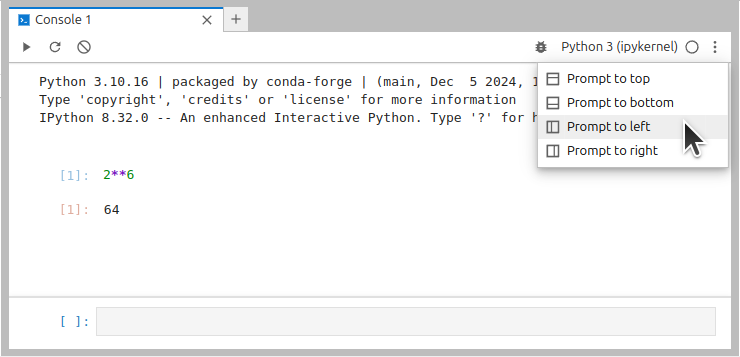
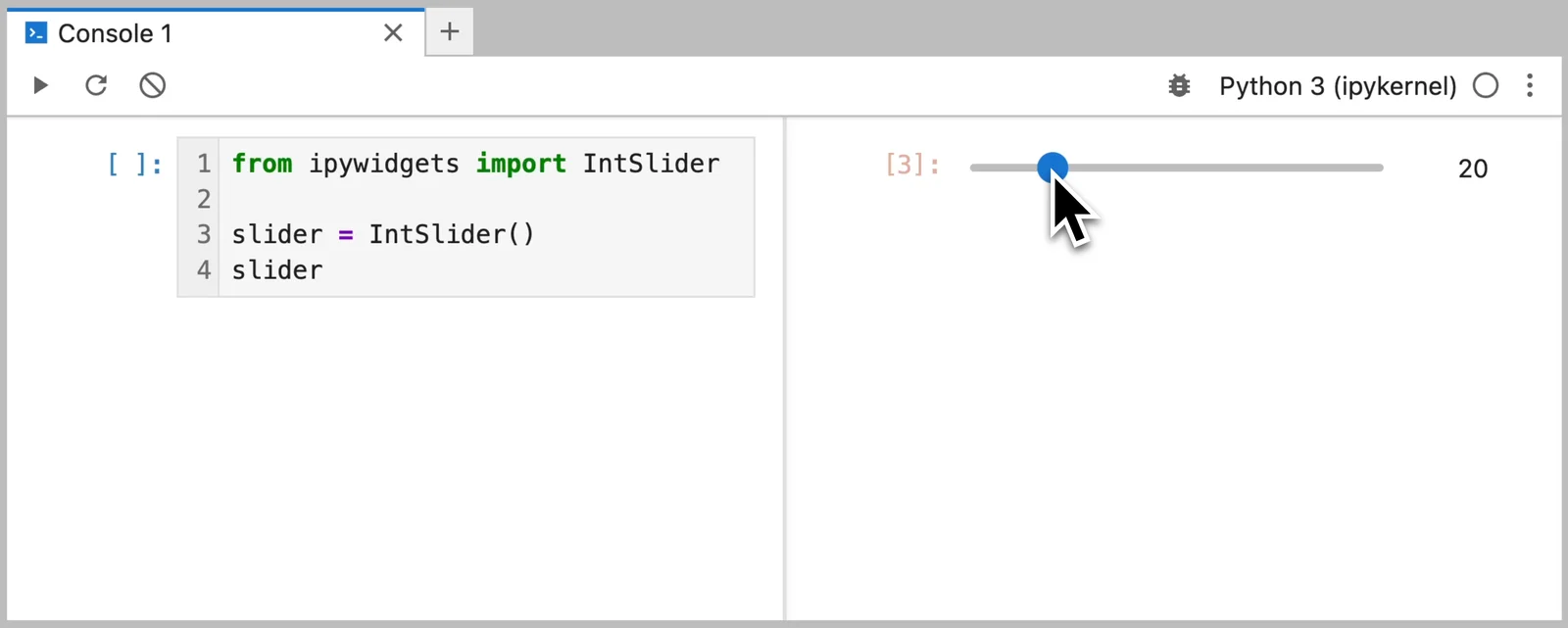
The code console prompt can now be positioned on the top, left, or right side of the console, in addition to the default bottom placement. The placement is persisted in the Prompt Cell Position setting. The console toolbar now includes buttons to:
- Execute code
- Restart the kernel
- Clear the cells
- Switch the kernel
Additional settings for console behavior have been added:
- Clear Code Content on Execute (enabled by default) — When disabled, the code submitted for execution remains in the code editor, allowing for further edits.
- Hide Code Input — When enabled, only the execution output is shown in the console.
- Clear Cells on Execute — When enabled, only the last cell is displayed.
Toggling all the three new settings transforms the console into an interactive editor resembling an ephemeral notebook with a single cell.
Settings import and export
Settings can now be exported to overrides.json from the Settings Editor, which can be used to pre-configure defaults in deployments or to restore settings.

Workspace indicator
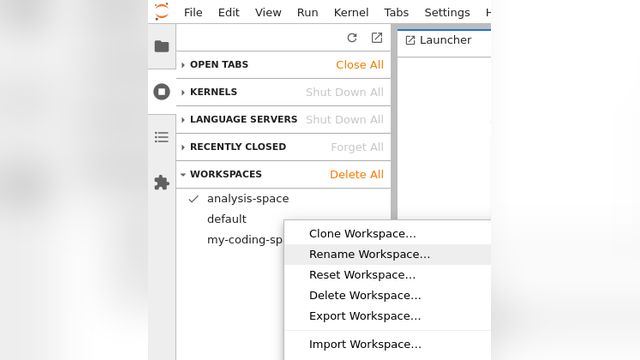
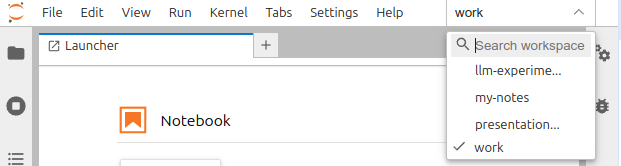
An opt-in workspace indicator is displayed on the top bar (next to the menu bar). It can be enabled in the Settings → View → Appearance → Show Workspace Indicator:
Support for collaboration without RTC: drive
Real time collaboration in previous versions of JupyterLab (which can be enabled by installing jupyter-collaboration package) was implemented by swapping the default JupyterLab file system drive to a collaborative drive with the RTC: prefix. This approach was incompatible with multiple extensions. JupyterLab 4.4 introduces the Content Providers API, which allows the next version of jupyter-collaboration to work without changing the drive prefix. This improves compatibility with extensions that do not support arbitrary drives.
Kernel subshells support
Kernel subshells, introduced in JEP 91, enable concurrent code execution in kernels that support them. When performing long-running computations (such as training a model), subshells enable users to:
- Use
ipywidgetswith updates displayed immediately - Monitor kernel resource usage (e.g. memory usage)
- Invoke arbitrary commands (e.g., refine code for a subsequent cell) while maintaining live access to previously defined variables
Subshells are supported by ipykernel 7 (currently in alpha).
To create a subshell, open context menu (right-click) over a notebook using a kernel supporting subshells and select “New Subshell Console for Notebook”. A new console panel will open allowing access to variables from the main session.
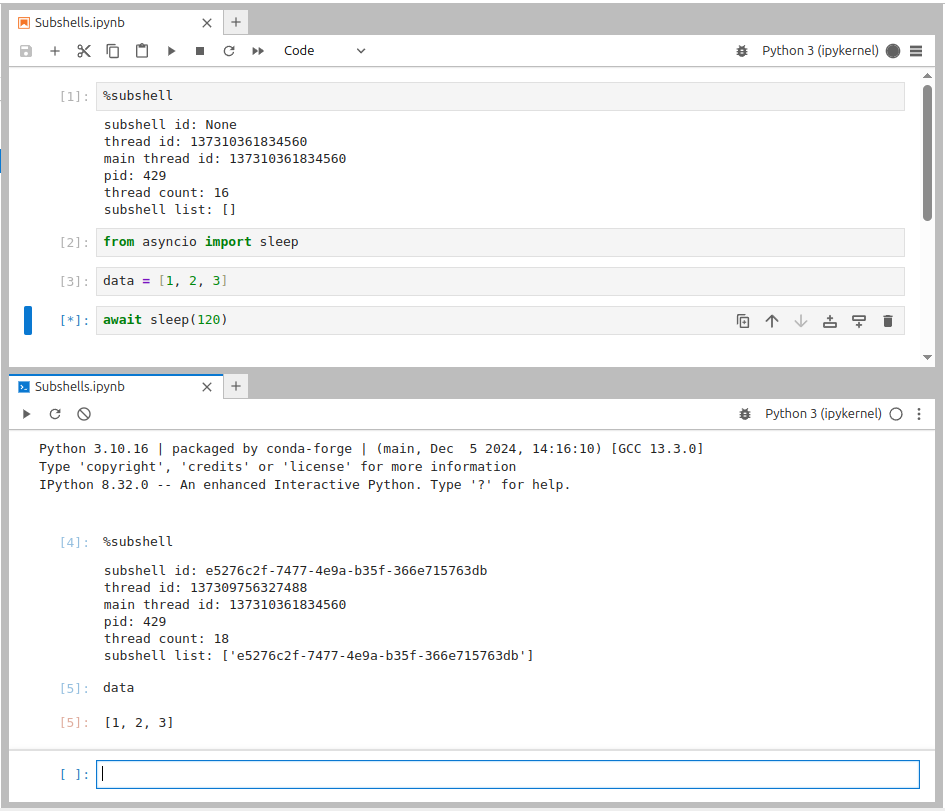
JupyterLab can automatically create subshells for comm messages if kernels support this feature. This enables concurrent execution of ipywidgets callbacks without requiring a user action. This behavior can be changed from the settings, with options to:
- disable that feature to not use subshells for comms
- (default) automatically create one subshell per comm-target (e.g. one subshell for all
ipywidgets) - automatically create one subshell per comm (this can lead to issues if creating many comms)
Context menu opt-out
The context menu, available under right mouse click in browsers, can now be disabled globally by toggling the Enable Context Menu option available in the Command Palette, or via the JSON Settings Editor in the Application Context Menu.
Slimmer status bar
The terminals counter no longer appears in the status bar if no terminals are open. The kernels counter can be disabled by toggling the Show the status bar item setting in Running Terminals and Kernels (code name showStatusBarItem).
Walkthrough video
If you prefer a more interactive tour of the new features mentioned in the post, check out the video below:
Acknowledgements
Thank you to all the contributors (list below is based on GitHub usernames):
- JupyterLab: @Adam-D-Lewis @afshin @ajbozarth @AmberArr @andrewfulton9 @andreytaboola @andrii-i @bollwyvl @brichet @Carreau @claytonparnell @cmarmo @Darshan808 @davidbrochart @deephbz @dlqqq @echarles @fcollonval @fleming79 @holzman @hxrshxz @ianthomas23 @iisakkirotko @itsmevichu @JasonWeill @jesuino @joaopalmeiro @jtpio @kellyrowland @krassowski @kuraga @maitreya2954 @martenrichter @martinRenou @mgeier @MUFFANUJ @nkn2022 @Nriver @pawel99k @pdarshane @peytondmurray @pre-commit-ci @Princekumarofficial @Rishab87 @rpwagner @RRosio @rsaditya01 @SamuelMarks @SatyajitRedekar @SylvainCorlay @trungleduc @Zsailer
- Notebook: @andrii-i @jdavid @jtpio @krassowski @RRosio
Special thank you to all the new contributors, the Jupyter Frontends team hopes to see you back!
Thank you to all the people who tested and provided feedback for the pre-releases! Lastly, thank you to the weekly triage group for triaging JupyterLab, Notebook and JupyterLab Desktop issues: @krassowski, @RRosio, @andrii-i, @danyeaw among others who attend.